# Dynamic Upsell

How to <mark style="color:green;">**Upsell or Cross Sell**</mark> Products on Post-Purchase checkout page using the <mark style="color:green;">**Upsell -> Dynamic**</mark> option? A simple walkthrough.

{% embed url="<https://drive.google.com/file/d/1L6ZEPALOxzYEvybkBt7jaPaRx44-bEVr/view?usp=sharing>" %}
Dynamic Upsell Tutorial
{% endembed %}

## Guide

1. Go to the store [<mark style="color:green;">**Settings**</mark>](https://admin.shopify.com/settings) <mark style="color:green;">**->**</mark> [<mark style="color:green;">**Checkout**</mark>](https://admin.shopify.com/settings/checkout).

<figure><img src="https://3364904426-files.gitbook.io/~/files/v0/b/gitbook-x-prod.appspot.com/o/spaces%2FFkRk9O2NkadeN0fqMKRA%2Fuploads%2F51KqSC873UlXShsLcRjw%2FScreenshot%202024-03-26%20at%209.35.45%E2%80%AFPM.png?alt=media&#x26;token=2eb37eb3-16dc-48f4-8f78-a3f4c21b740d" alt="" width="563"><figcaption></figcaption></figure>

2. Make sure that the [<mark style="color:green;">**HypeUp - Post Purchase app**</mark>](https://admin.shopify.com/apps/upsell-app30) is selected for the post purchase page.

<figure><img src="https://3364904426-files.gitbook.io/~/files/v0/b/gitbook-x-prod.appspot.com/o/spaces%2FFkRk9O2NkadeN0fqMKRA%2Fuploads%2F8n0INn6zUV58iPbjFb16%2FScreenshot%202024-03-26%20at%209.35.30%E2%80%AFPM.png?alt=media&#x26;token=94ec3e26-f283-4c79-8ece-04d5b5f1c68d" alt="" width="563"><figcaption></figcaption></figure>

3. Create a new [<mark style="color:green;">**Scenario**</mark>](https://admin.shopify.com/apps/upsell-app-30/scenarios).

<figure><img src="https://3364904426-files.gitbook.io/~/files/v0/b/gitbook-x-prod.appspot.com/o/spaces%2FFkRk9O2NkadeN0fqMKRA%2Fuploads%2FGHeReELUjFs9IUPfpvfN%2FScreenshot%202024-03-26%20at%209.41.52%E2%80%AFPM.png?alt=media&#x26;token=2daaf94f-5772-4a81-a678-72f252b259a0" alt="" width="563"><figcaption></figcaption></figure>

4. Select the <mark style="color:green;">**Upsell**</mark> category.

<figure><img src="https://3364904426-files.gitbook.io/~/files/v0/b/gitbook-x-prod.appspot.com/o/spaces%2FFkRk9O2NkadeN0fqMKRA%2Fuploads%2FAz3vzsB1Cr5nVaNLPMMG%2FScreenshot%202024-03-26%20at%209.42.41%E2%80%AFPM.png?alt=media&#x26;token=71e836ee-a8f5-4a1e-98b2-4c7e395d6955" alt="" width="563"><figcaption></figcaption></figure>

5. Select <mark style="color:green;">**Dynamic Source**</mark> upsell type from the options to upsell products on the post purchase page using product metafields.

<figure><img src="https://3364904426-files.gitbook.io/~/files/v0/b/gitbook-x-prod.appspot.com/o/spaces%2FFkRk9O2NkadeN0fqMKRA%2Fuploads%2FXTTpeSyvFDFfbREsRAgL%2FScreenshot%202024-03-26%20at%209.43.05%E2%80%AFPM.png?alt=media&#x26;token=c6b31742-a014-4291-b76d-474b913be65b" alt="" width="563"><figcaption></figcaption></figure>

6. Add multiple <mark style="color:green;">**conditions**</mark> to handle the visibility of the scenario on the post purchase checkout page.

<figure><img src="https://3364904426-files.gitbook.io/~/files/v0/b/gitbook-x-prod.appspot.com/o/spaces%2FFkRk9O2NkadeN0fqMKRA%2Fuploads%2FtJwgPSehkBJsgfdVUYf3%2FScreenshot%202024-03-26%20at%209.47.45%E2%80%AFPM.png?alt=media&#x26;token=06bd3cb7-cacf-4995-85a9-817b24a16f45" alt="" width="563"><figcaption></figcaption></figure>

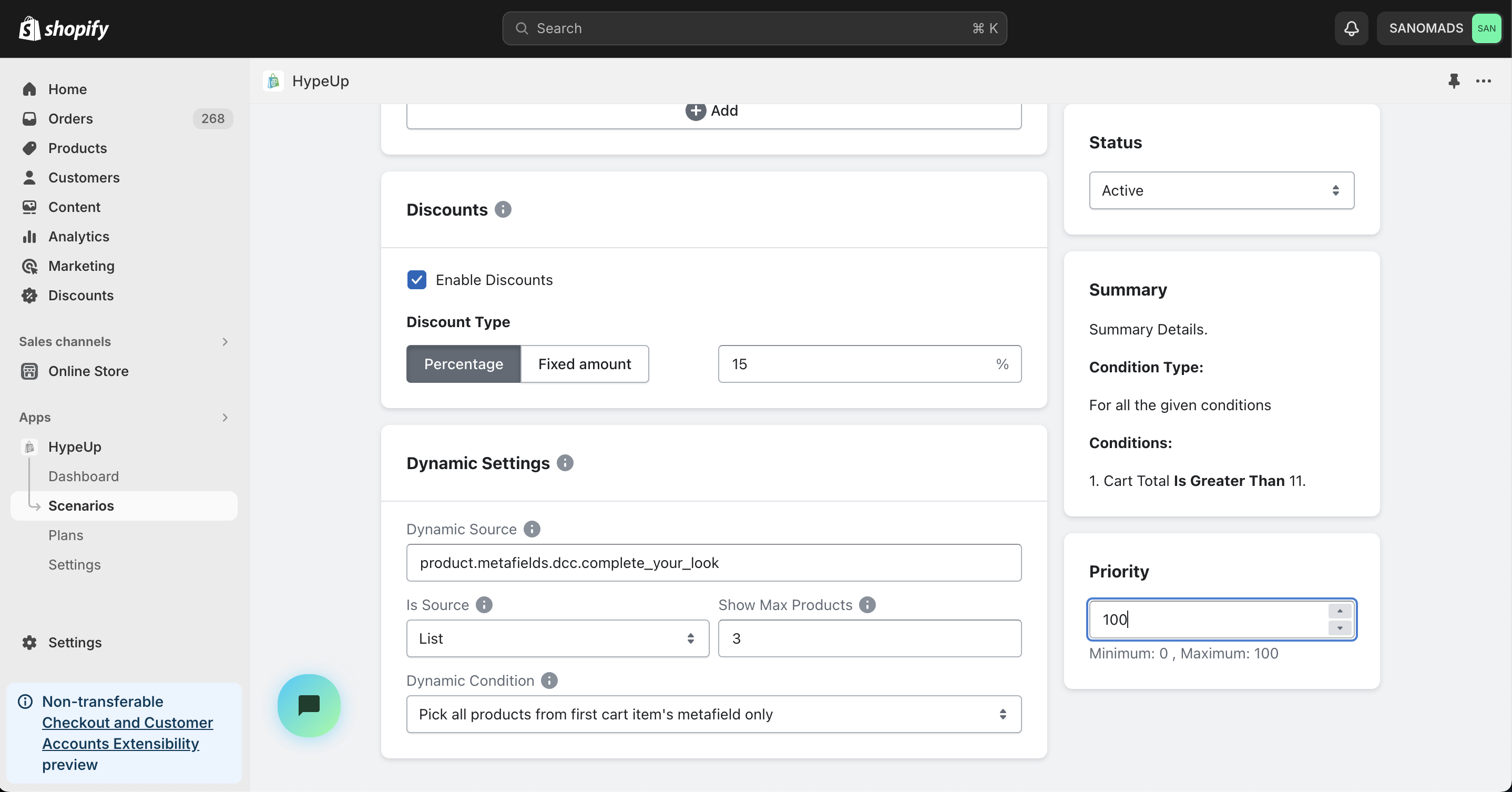
7. Enable <mark style="color:green;">**Fixed**</mark> or <mark style="color:green;">**Percentage**</mark> discounts. (optional)

<figure><img src="https://3364904426-files.gitbook.io/~/files/v0/b/gitbook-x-prod.appspot.com/o/spaces%2FFkRk9O2NkadeN0fqMKRA%2Fuploads%2FWLCPiWkRiX8xYhCw5Neh%2FScreenshot%202024-03-26%20at%209.49.37%E2%80%AFPM.png?alt=media&#x26;token=8b2464b0-e7a0-4407-ad60-ea04fb87b642" alt="" width="563"><figcaption></figcaption></figure>

8. Add the <mark style="color:green;">**metafield**</mark> in the dynamic source field to get the products for each cart item. Adjust the <mark style="color:green;">**Max Products**</mark>, <mark style="color:green;">**Is Source**</mark> and <mark style="color:green;">**Dynamic conditions**</mark>.

<figure><img src="https://3364904426-files.gitbook.io/~/files/v0/b/gitbook-x-prod.appspot.com/o/spaces%2FFkRk9O2NkadeN0fqMKRA%2Fuploads%2FRRhedkp8rjK7U0X4xSq2%2FScreenshot%202024-03-26%20at%209.56.35%E2%80%AFPM.png?alt=media&#x26;token=0143db81-066d-4af0-9c4f-4d2d4a390cb3" alt="" width="563"><figcaption></figcaption></figure>

9. Change the <mark style="color:green;">**status**</mark> to active to enable the customization block.

<figure><img src="https://3364904426-files.gitbook.io/~/files/v0/b/gitbook-x-prod.appspot.com/o/spaces%2FFkRk9O2NkadeN0fqMKRA%2Fuploads%2FhNazwFSscGUm8lIkcTfM%2FScreenshot%202024-03-26%20at%209.58.00%E2%80%AFPM.png?alt=media&#x26;token=bf66c056-cf80-4442-b5dd-d8dc6a9fc5c7" alt="" width="563"><figcaption></figcaption></figure>

10. Adjust the <mark style="color:green;">**priority**</mark> between 0 to 100 to cover multiple use cases for the customizations.

<figure><img src="https://3364904426-files.gitbook.io/~/files/v0/b/gitbook-x-prod.appspot.com/o/spaces%2FFkRk9O2NkadeN0fqMKRA%2Fuploads%2FeGQVDgU34eYpElYRuVpO%2FScreenshot%202024-03-26%20at%209.58.06%E2%80%AFPM.png?alt=media&#x26;token=7c046dfb-053d-4ddc-8528-74547c03d3af" alt="" width="563"><figcaption></figcaption></figure>

11. Click on the <mark style="color:green;">**Save**</mark> button to save the changes.

<figure><img src="https://3364904426-files.gitbook.io/~/files/v0/b/gitbook-x-prod.appspot.com/o/spaces%2FFkRk9O2NkadeN0fqMKRA%2Fuploads%2FyfjIh6lZY9W3vboHbIQg%2FScreenshot%202024-03-26%20at%209.59.11%E2%80%AFPM.png?alt=media&#x26;token=10be64de-2c44-4839-a97e-6b2d73489345" alt="" width="563"><figcaption></figcaption></figure>

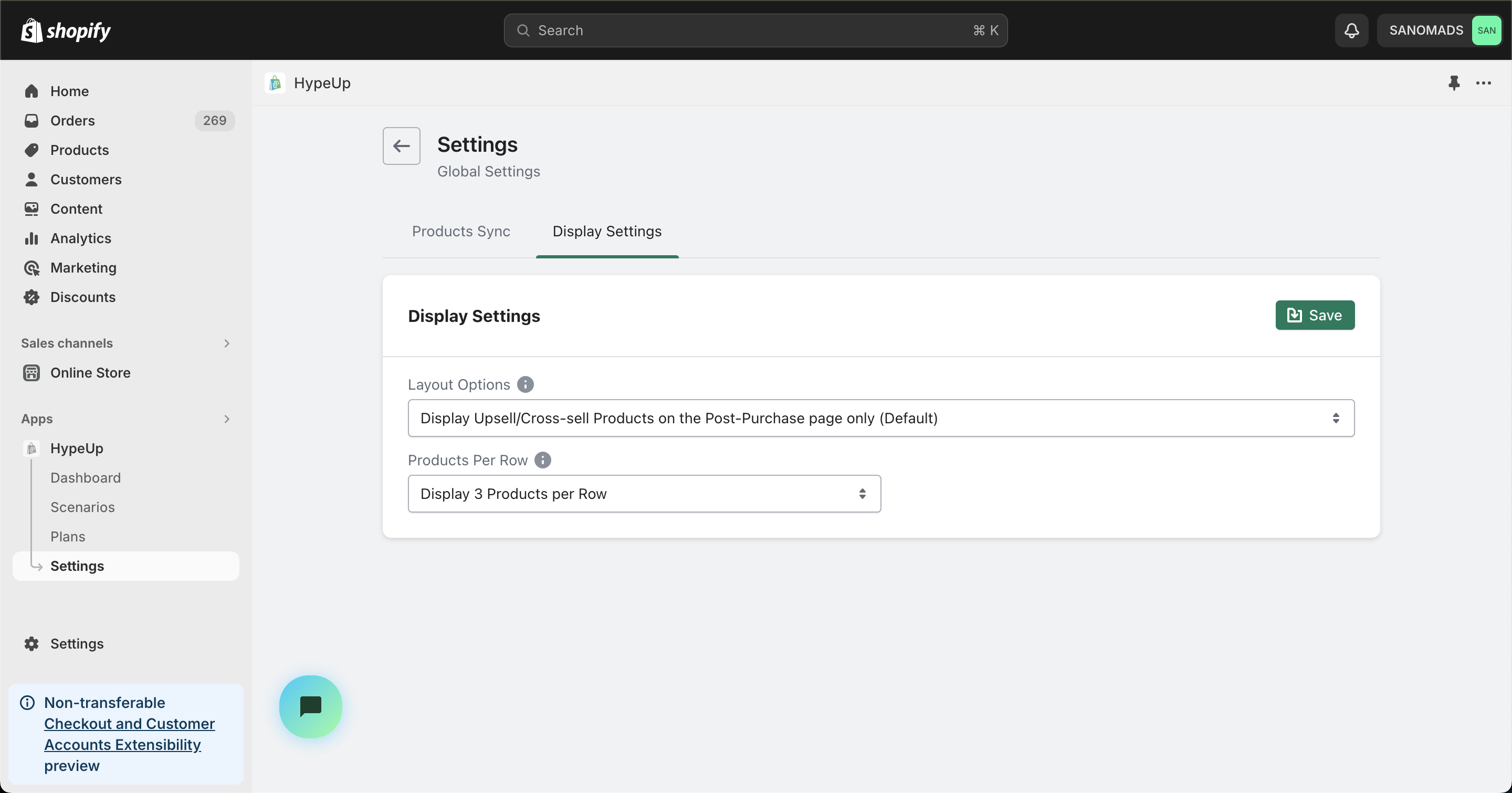
12. Go to app [<mark style="color:green;">**Settings**</mark>](https://admin.shopify.com/apps/upsell-app30/settings), click Display Settings then select a <mark style="color:green;">**Layout Option**</mark> and <mark style="color:green;">**Products Per Row**</mark> for Post Purchase checkout page layout.

<figure><img src="https://3364904426-files.gitbook.io/~/files/v0/b/gitbook-x-prod.appspot.com/o/spaces%2FFkRk9O2NkadeN0fqMKRA%2Fuploads%2FdcY0NEnalRjsscHfaTI5%2FScreenshot%202024-03-26%20at%2010.12.58%E2%80%AFPM.png?alt=media&#x26;token=52e2301a-3bb1-4702-be21-dbd73529089a" alt="" width="563"><figcaption></figcaption></figure>

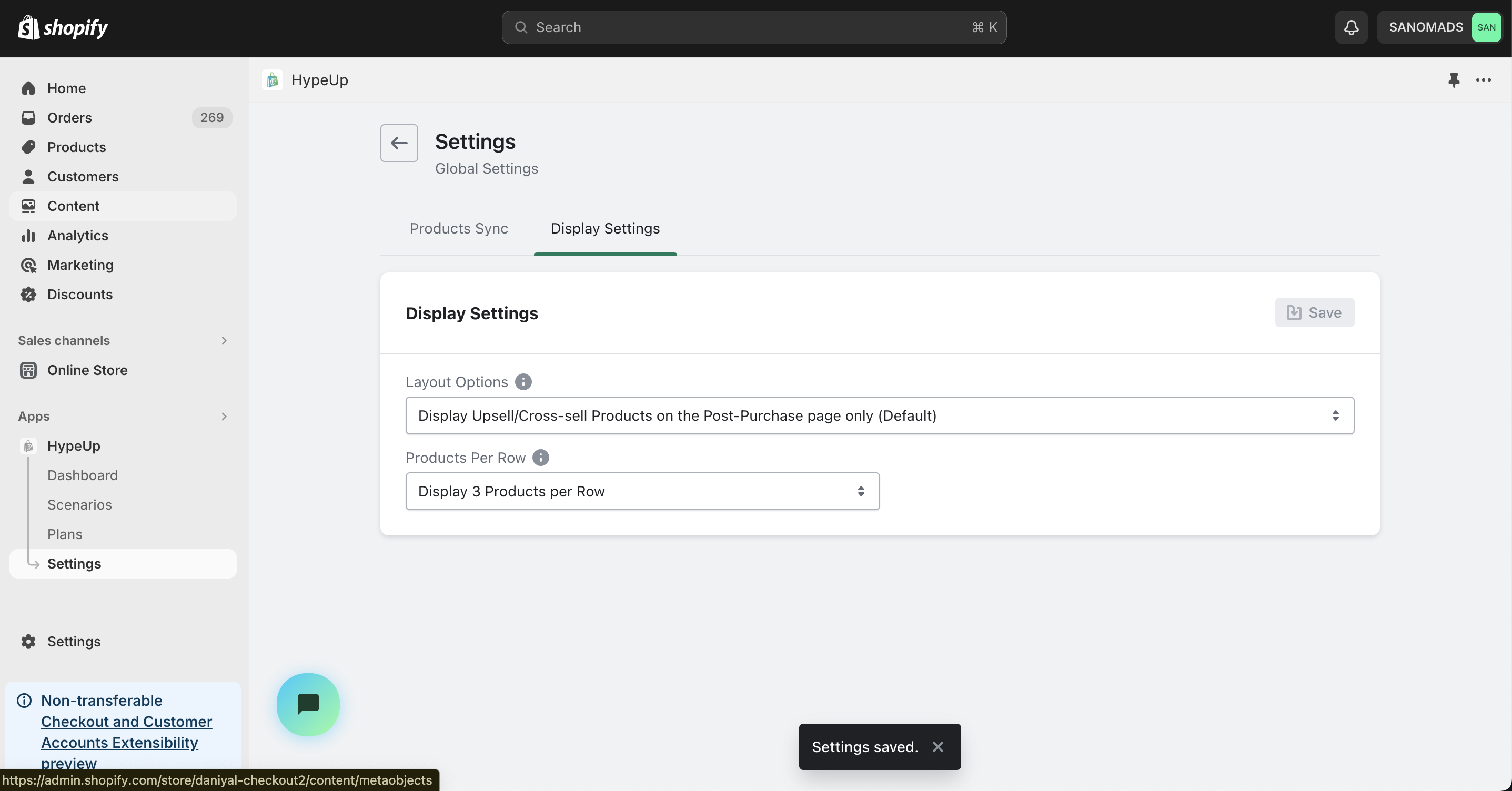
13. Click on the <mark style="color:green;">**Save**</mark> button to publish the changes live for the customers on the Post Purchase checkout page.

<figure><img src="https://3364904426-files.gitbook.io/~/files/v0/b/gitbook-x-prod.appspot.com/o/spaces%2FFkRk9O2NkadeN0fqMKRA%2Fuploads%2FDQZeHosHQzoPsgA4VB0M%2FScreenshot%202024-03-26%20at%2010.13.20%E2%80%AFPM.png?alt=media&#x26;token=4e42115a-28f9-4f92-bda2-6ef8efb381f4" alt="" width="563"><figcaption></figcaption></figure>

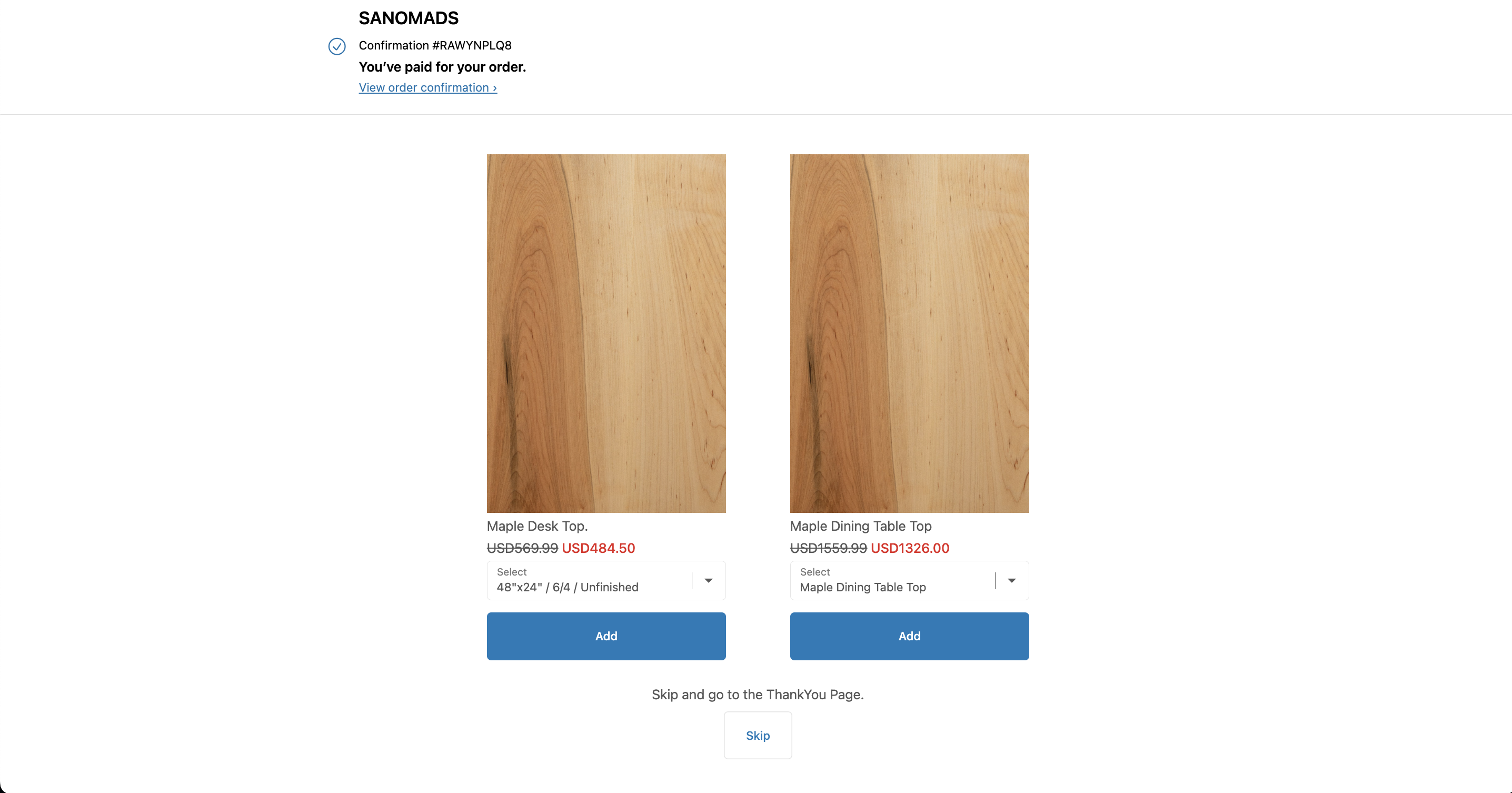
14. Create a new <mark style="color:green;">**Order**</mark> from your store and after a successful checkout, you will be able to see a post purchase page including the <mark style="color:green;">**dynamic upsell**</mark> products offered at 15% discount.

<figure><img src="https://3364904426-files.gitbook.io/~/files/v0/b/gitbook-x-prod.appspot.com/o/spaces%2FFkRk9O2NkadeN0fqMKRA%2Fuploads%2FIAlN8x7kkoxzYkPyMIzI%2FScreenshot%202024-03-26%20at%2010.18.33%E2%80%AFPM.png?alt=media&#x26;token=46550e7b-f5ed-4d13-9695-1522d024b3f8" alt="" width="563"><figcaption></figcaption></figure>